AI MIDI CREATE
Create unique loops and stems from scratch and avoid using the same overused libraries as everyone else.
Staccato is the MIDI co-writer that helps music producers break through writer’s block.
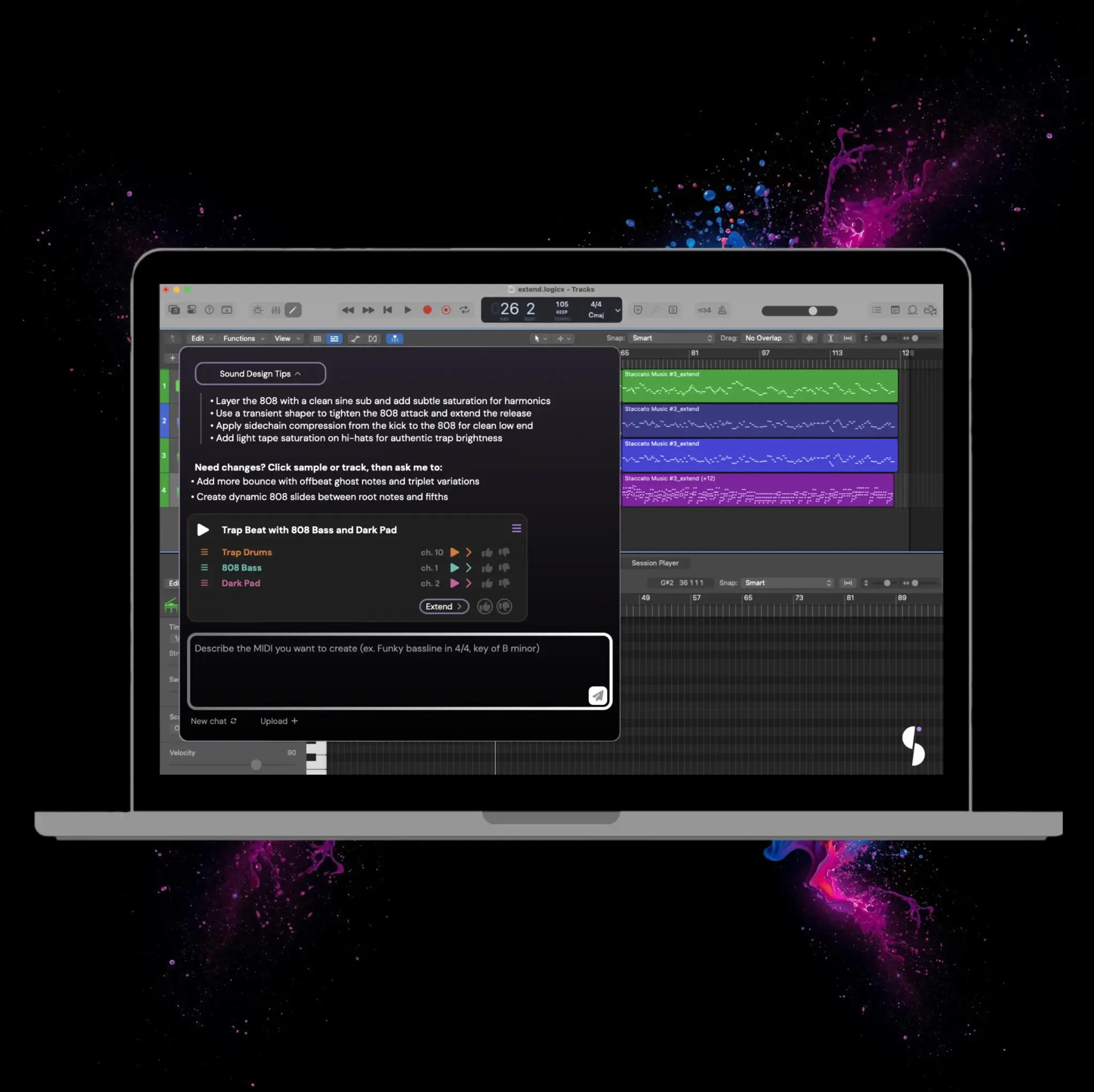
Most AI Makes Music for You. This One Writes With You.
Discover how award-winning producers behind Drake, The Weeknd, Paul McCartney and David Bowie are using Staccato's CREATE feature to make original music.
| Create Single-Track MIDI | Create Multi-Track MIDI |
|---|---|
0:000:00 Hip-hop drum beat with triplets on every bar, 100bpm | 0:000:00 Classical strings with trap drums |
0:000:00 80s funk bassline in 4/4, key of B minor | 0:000:00 Sad piano melody and chords with varying velocities, made for Native Instruments' Alicia's Keys, key of Eb Major |
0:000:00 Create a Brian May-style guitar solo | 0:000:00 Give me a dark EDM intro, building to a loud chorus |
0:000:00 Make a vi-IV-I-V progression in 5/4 time | 0:000:00 Create an upbeat pop chorus in the style of Chappell Roan |
Use the Create Feature With Your DAW
The Create feature builds original MIDI stems with the help of your prompts. Utilize the Create feature in any DAW with the Staccato plugin.
STEP 1
Start creating with Staccato
- Type any prompt into the chat box
- Press "Enter" or the send button to begin creating new MIDI
STEP 2
Listen to your original MIDI stems
- Staccato creates 3 stems for you to choose from
- Press play to hear the entire sample or one of the individual tracks through your virtual instruments
- To learn more about proper prompting techniques and connecting virtual instruments to Staccato, refer to our User Guide
STEP 3
Start working with your unique MIDI stems
- Drag and drop from anywhere in the generated sample to add the MIDI to your DAW.
- Or, be more specific by dragging each individual track where you want them.
- To clear your conversation with Staccato, press "New Chat"
Looking to Build on the MIDI You Created With Staccato?
Limited-time Offer
100% Money-Back Guarantee
Email [email protected] within 7 days after payment to request a full refund. No questions asked.
Frequently Asked Questions
Need more help? Check out our user guide
Tips for Using Create With Staccato
Read these tips to make the most of the Create feature.
Get Specific
The Create feature will understand your prompt regardless of typos or vagueness, but the key to great stems is a great prompt. Refer to our User Guide for prompt tips and tricks.
Test Every MIDI File
The Create feature will make 3 different stems each time you click the send button. Some stems will align more with your vision, so experiment to find what you like. If your generated stems don't match your vision, simply generate again until you get what you want.
Fit your Instruments to your MIDI
Your 2000s synth-pop melody may not sound right if you're playing the stem with a basic piano sound. Experiment with different sounds in your library to see what fits. If you want Staccato to generate stems for a specific instrument, just tell it which instrument!
Try Staccato's Suggestions
Staccato suggests instruments to pair with your stems. For example, a generated track in your "70s progressive rock intro" may recommend a delayed electric piano, but you're always free to experiment with your own instruments.