AI MIDI ACCOMPANIMENT
Staccato writes drums from your bassline. Melodies from your chords. Instantly.
Use Staccato to create parts that complement your tracks.
Finally, an AI Plugin That Doesn't Assume You Just Started Producing Last Week
Award-winning producers behind Drake, The Weeknd, Paul McCartney, and David Bowie are using Staccato to streamline their production process and transform their music.
| Before Accompanying | After Accompanying |
|---|---|
0:000:00 "Lofi Piano Melody" | 0:000:00 Add a simple, soft melody for Addictive Keys Mark One EP that fits with this slow rhythm section. |
0:000:00 "Synth Chords and Bassline" | 0:000:00 Add a synth bassline that follows this chord progression but uses passing notes and rhythmic variation |
0:000:00 "Soft Bridge Section" | 0:000:00 Make a soft bridge section ending with a tense build-up based on this verse. |
0:000:00 "Final Fantasy 6 w HiHats" | 0:000:00 Create a driving hi-hat pattern that matches the tempo and mood of this section. |
Use the Accompany Feature With Your DAW
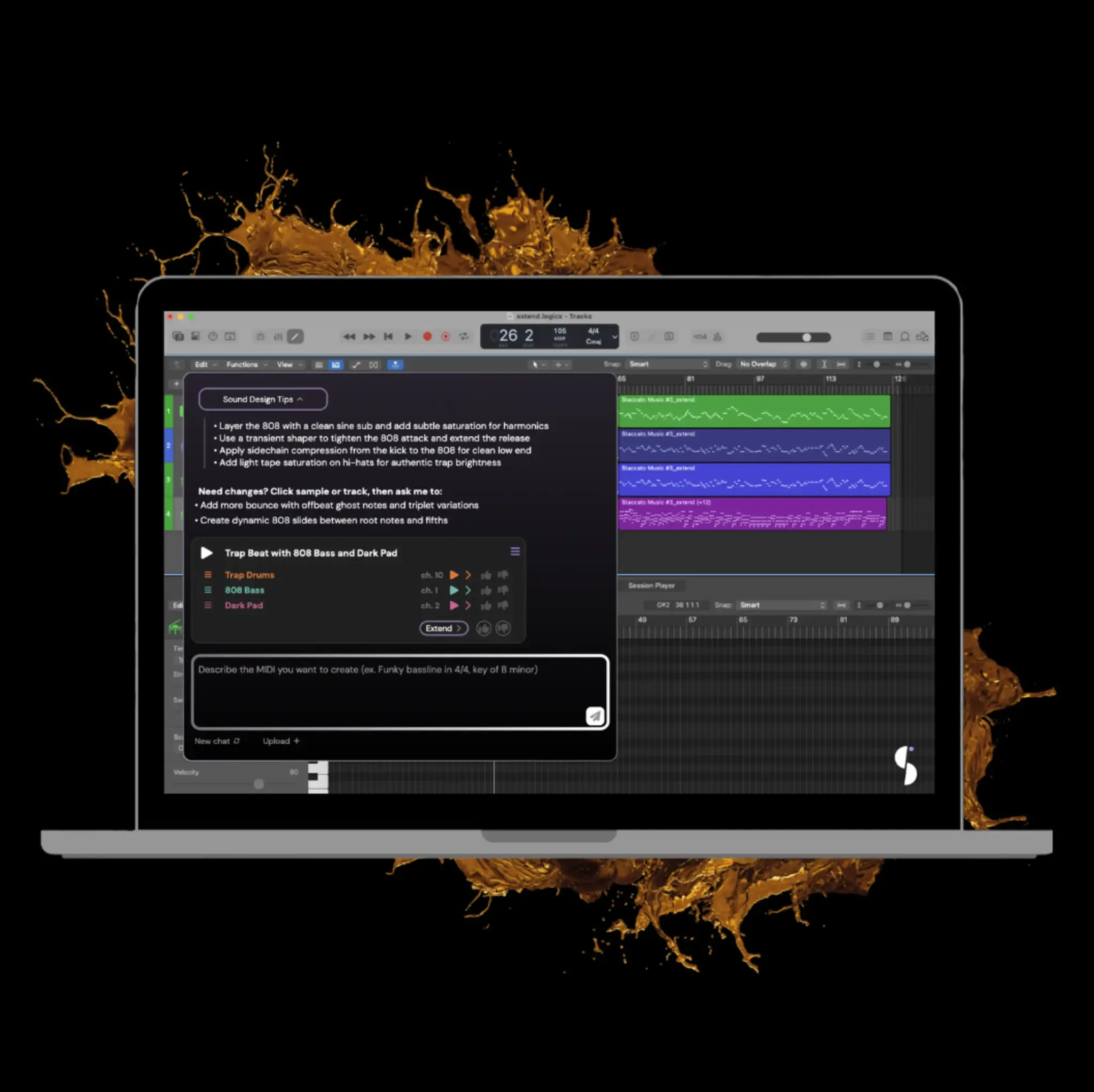
Staccato listens to your music to help you build supporting parts that fit. Create accompanying tracks in any DAW with the Staccato plugin.
STEP 1
Use the Create feature to create accompaniments in one of three ways:
- Click any previously generated MIDI in the CREATE tool
- Click one of the tracks within a generated sample
- Drag & drop your own MIDI file into the chat box, or click the upload button
STEP 2
Tell Staccato what to do
- Uploaded MIDI files will appear in the bottom corner of the chat box
- Ask for any accompaniments. For prompting tips, refer to our User Guide
- Press "Enter" or the send button & watch Staccato create accompaniments
STEP 3
Start using your accompanied MIDI file
- Drag & drop your new MIDI sample to your DAW or desktop
- Drag any tracks to your DAW
- Or refine the generated MIDI, click the sample & ask for more changes
Looking for More Unique Ways to Write Music With Staccato?
Limited-time Offer
100% Money-Back Guarantee
Email [email protected] within 7 days after payment to request a full refund. No questions asked.
Frequently Asked Questions
Need more help? Check out our user guide
Tips for Writing Accompanying Tracks With Staccato
Read these tips to get the most out of Staccato!
Get Specific
While prompts like "add a fitting melody" or "create a bridge section" can work, your results will be more tailored if you provide details. For example: "Add a gently flowing piano melody to overlay this melancholy string section". The more clearly your idea is communicated and grounded in the context of your uploaded MIDI, the more accurate the results will be.
Get Experimental
Being specific helps you create results that closely match your musical vision. On the other hand, vague or open-ended prompts can lead to unexpected results and fresh creative directions. If you're looking for inspiration or unsure what to add next, try open-ended prompts like "Make a new song intro out of this chorus section"
Isolate Your Sections
Staccato takes every track of your MIDI file into account when generating accompaniments, help you stay true to your style. For more experimental results, try removing your melody and only uploading your chords. Then prompt "Add a simple melody from these chords". You might discover a new melody to use in your second verse, or even find that the generated melody works better as a bassline when paired with your original idea.
Revise and Polish Further
Staccato offers a range of features for music producers: if you like the chords made by Staccato but prefer them as chord stabs on every beat or as arpeggiated notes with varying velocities, simply select your accompanied MIDI and prompt a rewrite to match your preference.